Every car you buy gets one small card. Open it to see its bills of sale.
This is what Omar asked for in his video on Oct 19. It is live now in VinSight Tools. The pictures below are from the real system. The red numbers match the list under each picture. Tap a picture to open it full size.
- STEP 1Add the car in ClickUpPurchase Board, with the real VIN. Nothing else changes.ClickUp
- STEP 2Card appearsVinSight makes the card by itself and comments on the task with the link.Available Inventory
- STEP 3Sell it, mark it paidMake the sale BOS from the card. When the money lands, mark it paid and add the wire receipt.The car's card
- STEP 4Car moves to SoldWhen every BOS for the car is paid or void, the card moves to the Sold tab.Sold tab
Find the car
Cars are no longer added to Deals. They show here instead, one small card per car. The 13 cars already made from ClickUp moved here too.
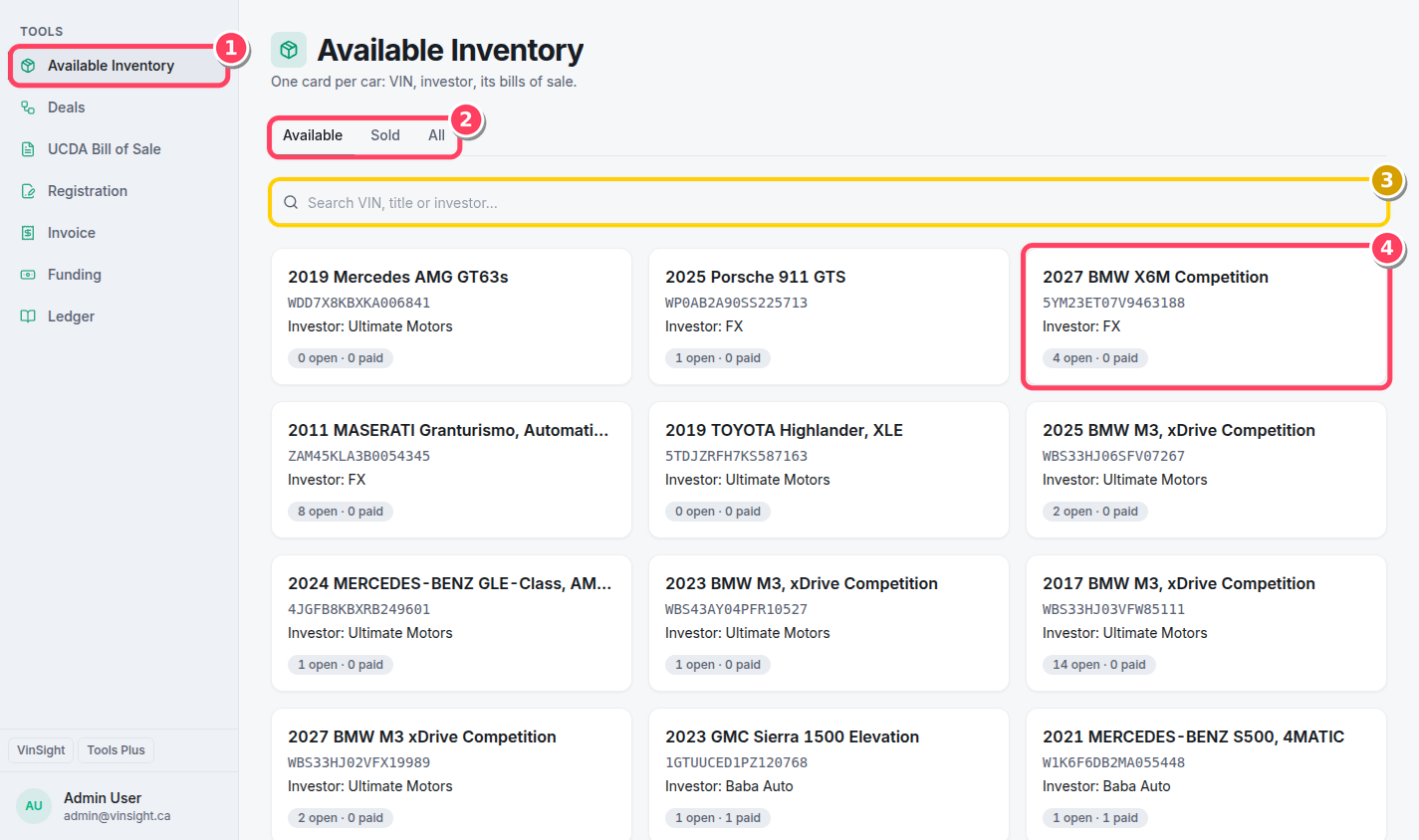
- Available Inventory is the first item under Tools.
- Available = not sold yet. Sold = every BOS for the car is paid or void. All = both.
- Search by VIN, car name or investor.
- One card = one car. Car name, VIN, investor, and how many bills of sale are open and paid. Click the card to open it.
The car's page: every BOS for this VIN
Every bill of sale and invoice made in VinSight with this VIN shows here, newest first. You don't need to link them by hand. The VIN does it.
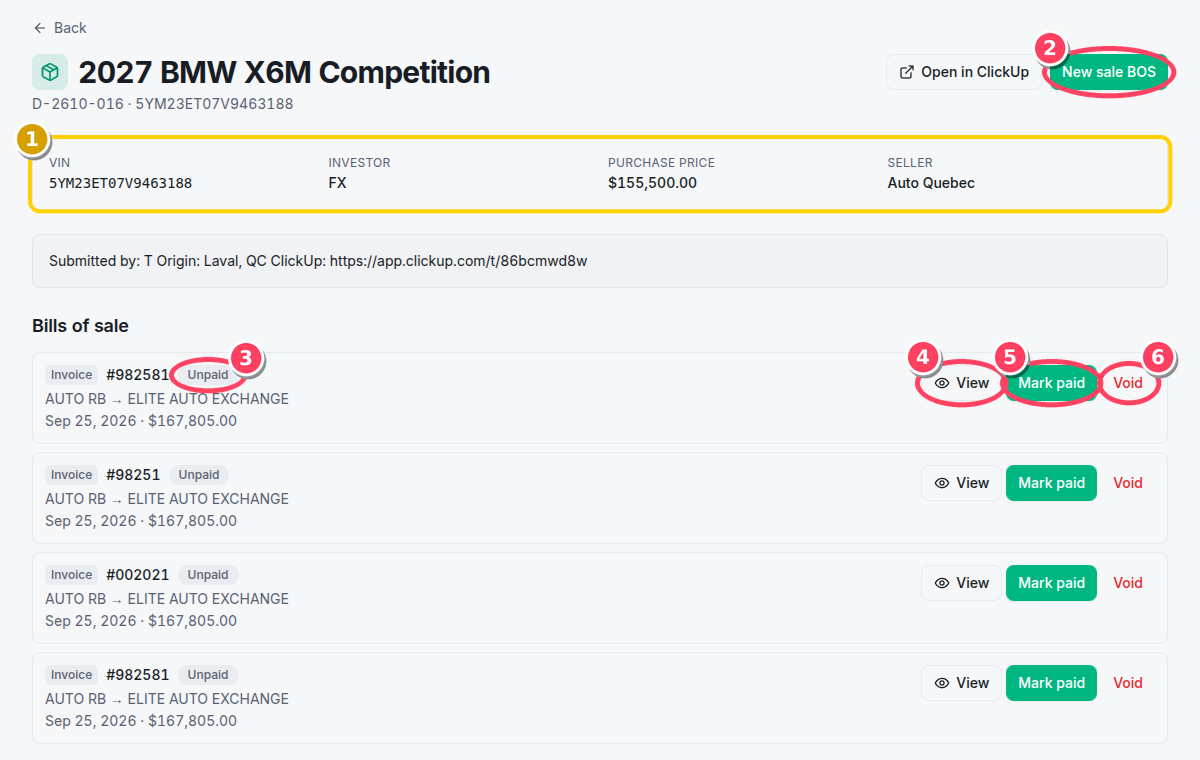
- Car facts from ClickUp: VIN, investor, purchase price, seller.
- New sale BOS opens the BOS form with the car filled in and the investor as the seller. You add the buyer and the price.
- Status of each document: Unpaid, Processing, Paid or Void.
- View opens the PDF.
- Mark paid asks for the wire receipt (next step).
- Void is for a BOS you no longer need. Only Omar and Sasha can void. Others don't see this button. A paid or void BOS gets a Reopen button if it was set by mistake.
Example to clean up
The X6M above has 4 invoices for the same $167,805, and two of them have the same number (#982581). Keep the real one open and Void the others. Then the card only counts what is real.
Mark it paid and add the wire receipt
Click Mark paid on the BOS. A small window opens.
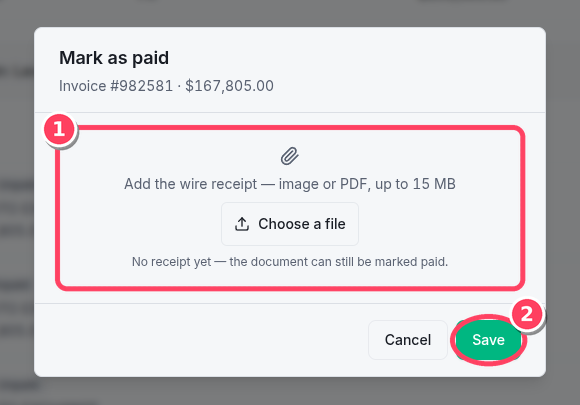
- Add the wire receipt. An image or a PDF, up to 15 MB. A photo from your phone works too. You can skip it and add it later.
- Save. The BOS turns Paid.
After you save:
- The ClickUp task gets a comment with the receipt. VinSight never closes or moves a ClickUp task.
- The receipt also shows in the Ledger on the bank line matched to this BOS. You upload it once, and it shows in both places.
New in the Ledger
Open any bank line to see these.
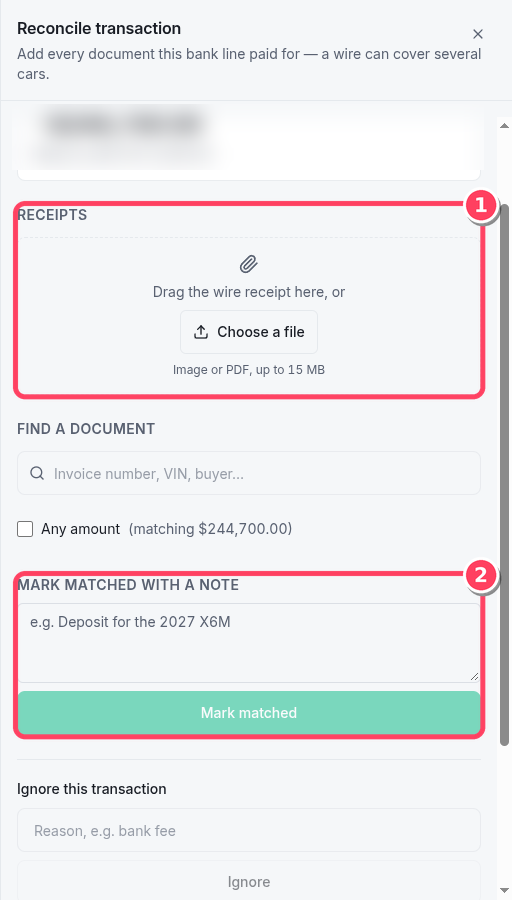
- Receipts now show. A line that said "2 attachments" used to show nothing. Now the files are listed. A receipt added on a BOS shows here too, marked From that BOS.
- Mark matched with a note. Use this for a bank line with no BOS or invoice, like a bank fee or a transfer between our own companies. Write what the payment was, then click Mark matched. The line shows Matched (note). Undo is there if you were wrong.
Also new: on a suggestion, a View button opens the invoice PDF, so you can check it before you Confirm or Reject.
How it works now
Rules
- Who can void: Omar and Sasha only.
- ClickUp: comments only. VinSight never closes a task.
- When a car is Sold: every BOS for the VIN is paid or void, and at least one is paid.
- Scotia (RB) wires arrive in full. All 23 RB wires since Sep 2 matched their invoices to the cent. VinSight keeps matching RB wires to the exact amount.
- TD (SRI) wires are still $17.50 short. That is TD's fee, and VinSight already counts it.
For Sasha: when a car sells
- Open Available Inventory and click the car.
- Click New sale BOS. Add the buyer and the price, then make the PDF.
- Void any BOS for this car that is no longer needed.
- When the wire lands, click Mark paid and add the receipt.
- In the Ledger, confirm the bank line as usual.
- When nothing is open, the card moves to Sold by itself.